




 Lilia Schulz
 10 December, 2025
Burn DVD
10 December, 2025
Burn DVD

Burn Videos to DVDs and Blu-ray Discs Effortlessly
Burning videos, like movies, homemade films, recorded meetings, etc., to DVD is still a good way to store video today, whether you want to make a backup or share with friends and family, or simply create personal collections. That’s why you need a professional DVD burner.
However, with so many DVD burners available, not all are compatible with all Mac OS versions. If you are having trouble finding a reliable Mac DVD burner, this post can help. In the following, we’ll walk through detailed reviews of the 10 best DVD burners for Mac and help you select the best one!
*Disclaimer: Before starting to rip a copy-protected DVD, note that it’s actually prohibited to copy copyrighted DVDs for commercial usage or distribute them to others. But for personal backup, it’s legal, so you don’t need to be worried about it.
 How We Test:
To obtain unbiased results, we test all Mac DVD burners in real-world playback scenarios. We test their performance using commercial DVDs with an emphasis on video quality, audio sync, and subtitle rendering. We also record CPU/GPU utilization, note support (or lack thereof) for hardware acceleration, and disk menus.
• Best for: Users looking for a one-stop DVD burner for Mac with built-in DVD menu editing.
• Operating System: Windows, Mac
• Price: Starts from US$24.95 with a free trial.
VideoByte DVD Creator, not only equipped with a professional DVD burner but also a powerful DVD editor with numerous features.
It has a built-in DVD Menu Creator, offering various templates to help you customize a unique menu effortlessly. With this feature-rich Mac DVD burner, you can easily create your own DVDs while editing videos before burning them. Furthermore, VideoByte DVD Creator is regarded as the fastest DVD burner for Mac and Windows, with embedded acceleration techniques to enhance burning performance. To transfer batches of high-definition 4K videos to DVDs, the program completes the process in a short time, greatly improving burning efficiency. It’s time-saving for you to burn a DVD on a MacBook, MacBook Pro, or other Mac devices!
• Supports burning both homemade and online videos of all popular formats, such as AVI, MPEG, 3GP, MP4, etc., to commonly-used DVD disc types.
• Allows users to edit videos, like adding subtitles and external audio tracks to the video.
• Retain lossless HD or 4K definitions to guarantee the best viewing experience.
• Offer beautiful templates to let users DIY DVD menus in their preferences.
• Ensure stable performance and 3 simple steps to burn DVDs effortlessly.
Now, you can follow the easy steps below to try burning videos to DVD on Mac with VideoByte DVD Creator.
Step 1. Open VideoByte DVD Creator on Mac after installing it, then insert a blank DVD disc and click the Add Files option in the top-left corner of the program to import videos.

Step 2. After adding videos to the program, you can click the Edit button to modify video effects, including brightness, saturation, and more, or add watermarks in preferences.
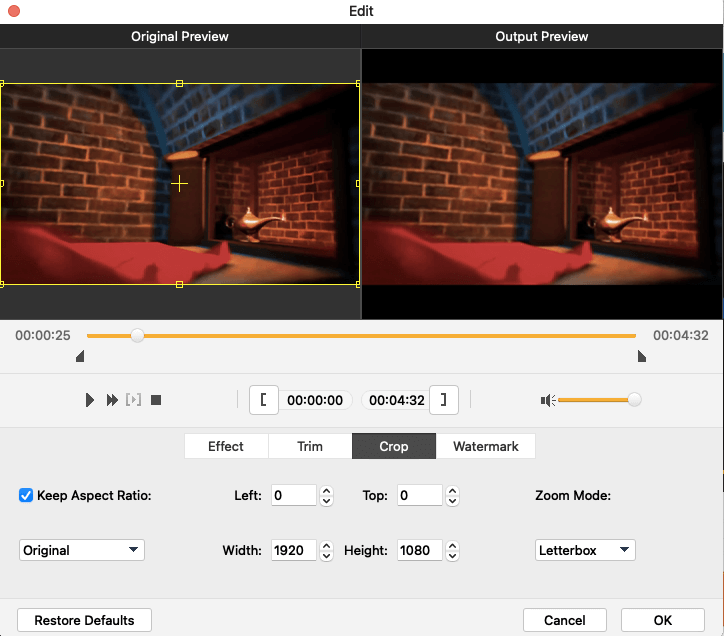
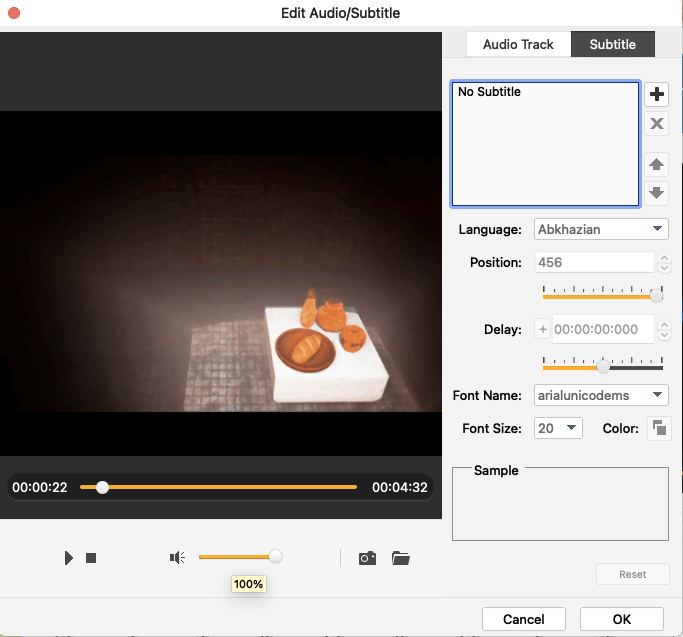
Step 3. Subsequently, you can also select to add audio tracks or subtitles to videos accordingly.
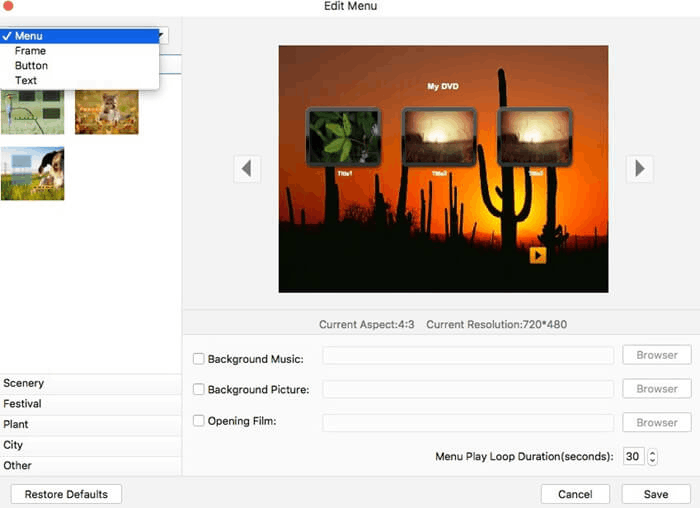
Step 4. Now, move on to customize the DVD menu! VideoByte DVD Creator has provided some theme templates to select from, and you can directly apply any of them. Besides, there are editing tools provided in this module to let you customize the DVD menu in preferences, too. Just make your DVD look unique now!
Step 5. Eventually, when you end editing the DVD menu, confirm to proceed with the burning in no time. VideoByte DVD Creator will immediately help you burn videos to DVD on Mac at ultra-fast speed!
 Pros
Pros
 Cons
Cons
• Best for: Users who want a free DVD burner for Mac with a simple, single-function design for burning DVDs only.
• Operating System: Mac only (macOS 10.9 or higher)
• Price: Free
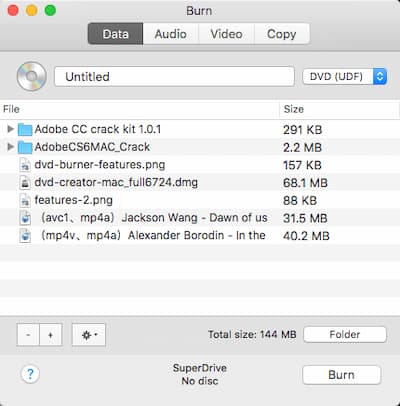
Seemingly, as its name suggests, Burn is a reliable free DVD burner for Mac that meets your needs. It is an embedded feature on Mac desktops, so you don’t need to install a third-party DVD burner. Burn supports creating a wide range of video discs in various formats (such as MP4, AVI, WMV, and more). With decent quality ensured, you can easily create high-quality DVD discs with Burn on Mac.
Pros
Cons
• Best for: Users who want to burn movies to DVD on Mac for free.
• Operating System: Mac OS X ≥ 10.15 Catalina
• Price: Free
DVDStyler is another Mac DVD burner that lets users burn video files to a DVD for free. It is probably the most powerful tool for creating DVD menu templates among all free DVD burning software for Mac. In addition to the 20+ theme and background templates provided, DVDStyler allows you to add your own pictures on your Mac as the DVD menu’s background.
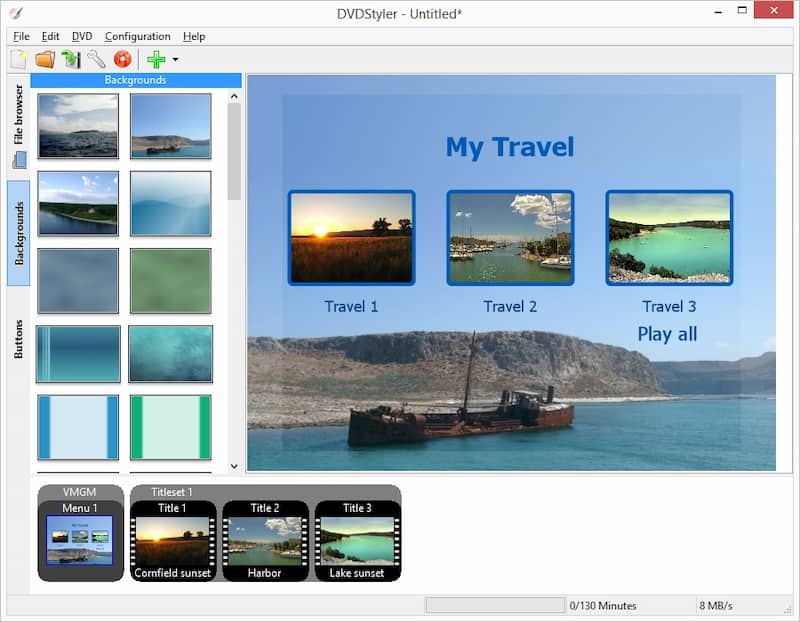
Although it is powerful for creating templates and DVD options, such as adjusting video/audio formats and video bitrate, it has drawbacks. There are many ads on DVDStyler’s official website, which may affect your user experience and data security. And, the interface of this product feels like outdated from 10 years ago. Moreover, it does not optimize for many computer screen resolutions, making it incompatible with many MacBooks. For example, on my MacBook Pro, the DVDStyler interface is blurry.
Pros
Cons
• Best for: Individuals who frequently burn DVDs on a Mac and want advanced features.
• Operating System: Windows 10 or later; macOS 10.13 or later
• Price: Starts from US$39.99
When it comes to the best Mac DVD burner available today, Cisdem DVD Burner has to be mentioned. This burning software can help you create 4K/5K DVDs from local videos of all popular formats (MP4, AVI, MOV, MKV, WMV, MPEG, and more), and even lets you upload sources from streaming platforms and then directly burn YouTube videos to DVD, or other social media platforms such as Facebook, Instagram, and so on.
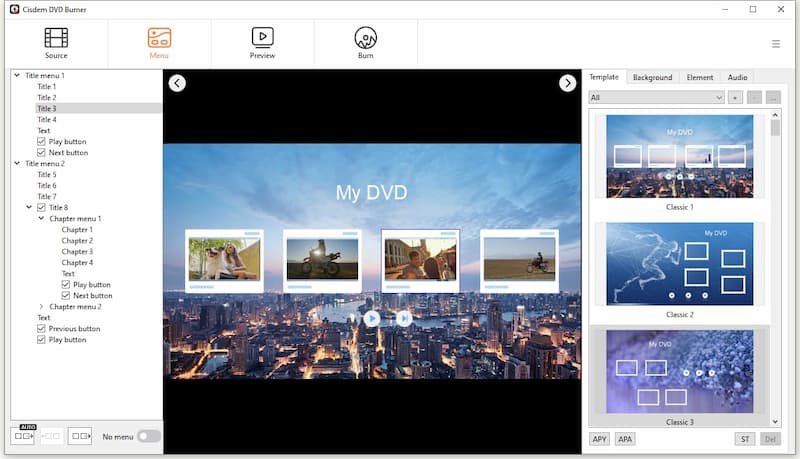
Moreover, this premium DVD burner for Mac, with advanced features, also offers a wide range of DVD menu templates for various occasions and themes, including holidays, anniversaries, graduations, travels, and more. In addition, it offers many video editing features to help users perfect their DVD burning process. Undoubtedly, it is a great choice for users who need advanced services, but correspondingly, the cost of using Cisdem DVD Burner for Mac can be much higher.
Pros
Cons
• Best for: Users who play DVDs on Mac with external DVD players.
• Operating System: Mac OS X 10.3 Panther or better
• Price: Free
For those who don’t want to download extra software to take up the storage of your Mac, Finder is probably what you need. Finder, as an all-in-one helper, is the default file manager for Mac users to interact with the file system, allowing them to browse, move, copy, and delete files, as well as burn files to a DVD.
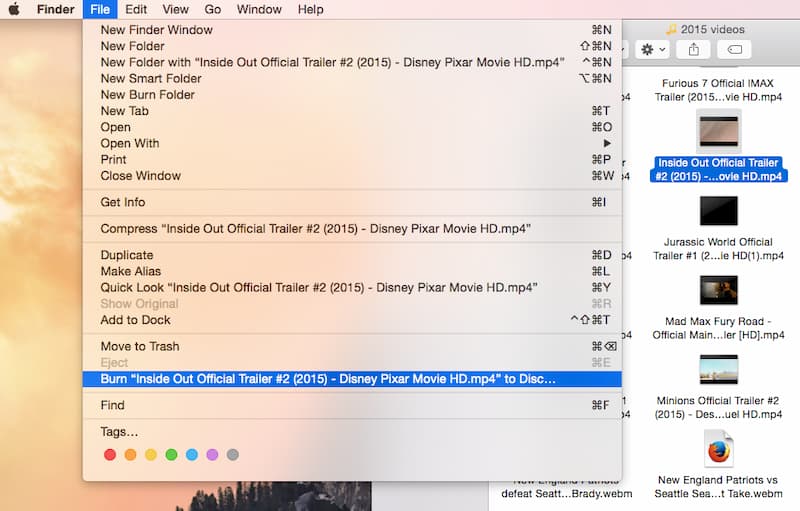
However, this powerful tool also has a drawback: it only supports burning data DVDs. This means that the DVD you burned can only be used as a USB drive, and the videos on it cannot be played directly in any DVD player. Also, it doesn’t provide any menu templates or editing functions to customize DVD menus.
Tips
If you need to burn playable DVDs with personalized DVD menus, a more professional DVD burner for Mac, like VideoByte DVD Creator, can be a better option.
Pros
Cons
• Best for: Beginners who want to back up videos to DVDs without DVD menus.
• Operating System: From Mac OS 10.4 up to Mac OS 10.14
• Price: Free
If you are looking for a CD/DVD burning software for Mac, LiquidCD is worth a look. Running smoothly on macOS, the program primarily allows users to burn custom hybrid discs from videos, audio files, images, and data in more than 50 formats. This DVD Mac Burner is entirely free to use.
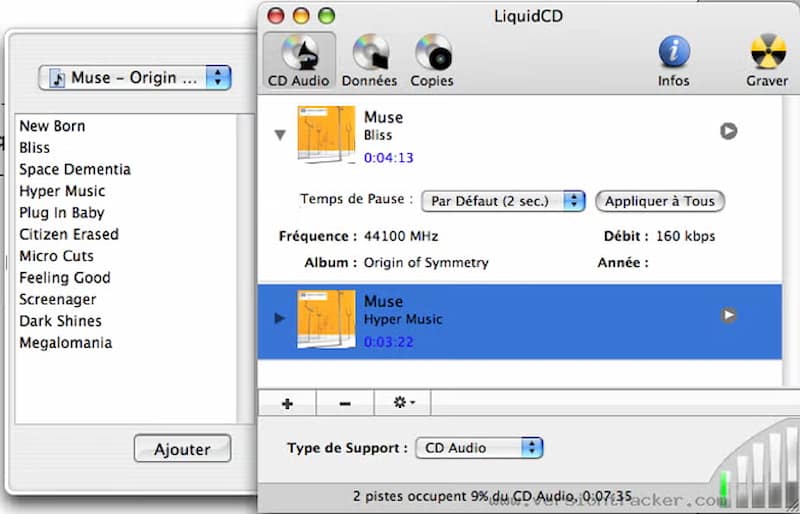
However, there is nothing special you can find in this burning software, as it is designed for beginners, allowing everyone to burn videos to a DVD on a Mac without complicated operations. If you want to edit and personalise your own DVDs with more advanced editing tools, LiquidCD likely won’t meet your needs.
Pros
Cons
• Best for: Users who want to burn regular and other types of videos to DVD on older Mac systems.
• Operating System: Mac OS 9, Mac OS X
• Price: Free
IDVD is a Mac-based DVD authoring software officially released by Apple Inc., supporting users to burn QuickTime movies, digital slideshows, and MP3 music to DVD with internal or external DVD drivers. Moreover, this DVD Burner for Mac includes over 150 themes designed by Apple to personalize the DVD menu, including layout, background art, typography, and soundtrack for DVD main menus and submenus. Obviously, it is a very attractive advantage for users who enjoy customizing DVD menus.
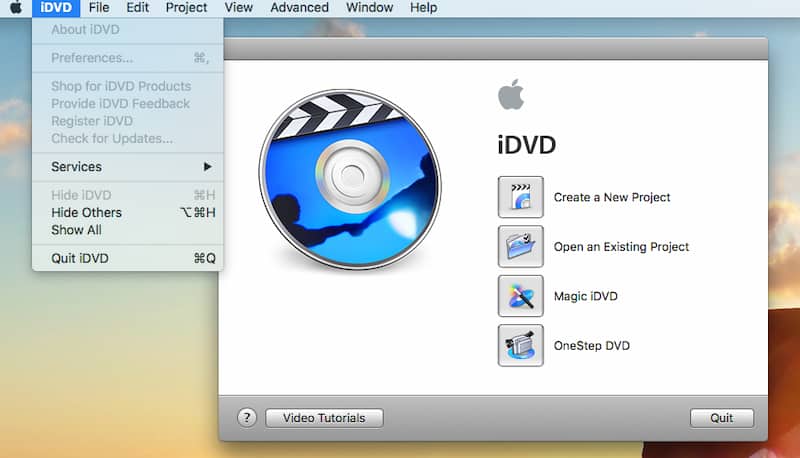
However, this Mac DVD burner has not been updated since 2011 and is only compatible with Mac OS 9 and Mac OS X. Therefore, to use this DVD burner on a Mac, you will need to use the proper OS, and you may encounter issues due to a lack of updates. Or you can use other iDVD alternatives like VideoByte DVD Creator with rich menu templates and flexible editing features to burn DVDs on Mac.
Pros
Cons
• Best for: Quick DVD burning on Macs running classic macOS.
• Operating System: Mac OS X 10.4 and 10.5
• Price: Free
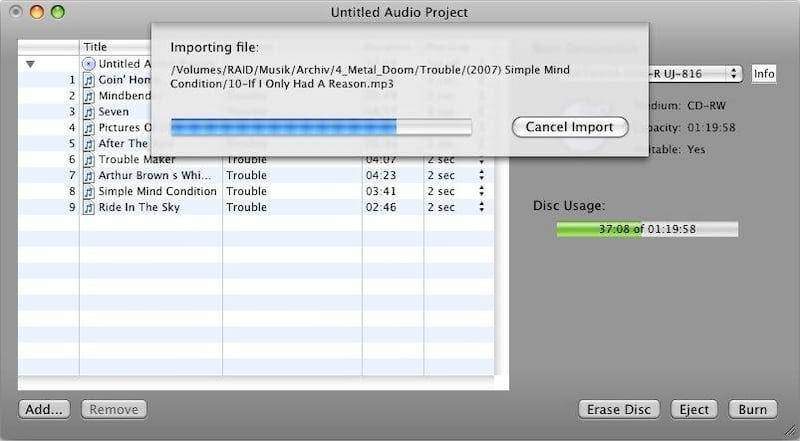
If you are using an iMac or MacBook with classic macOS systems installed, SimplyBurns can be a considerable Mac DVD burner you should not miss. SimplyBurns has a classic but straightforward interface, helping you erase a DVD disc (if it is not blank) and then burn videos to DVD with very simple clicks. Nevertheless, this program is not equipped with menu editing functions, so you will need extra help if you wish to generate DVDs with customized DVD menus. And, it hasn’t been updated since 2009, so it only runs on Mac OS X 10.4 and 10.5. For other Mac operating versions, it could not assist you. You can download it from sourceforge.net.
Pros
Cons
• Best for: Users who want a Mac DVD burning software to burn all types of videos, audios, and data files to more disc types.
• Operating System: macOS 10.5 or above
• Price: Starts from US$34.99
Express Burn is also one of the best DVD burning software for Mac, which runs on macOS 10.5 or higher and supports almost all media files for burning. For example, you can easily burn audio, video, or data files to DVD, CD, or Blu-ray discs on a Mac. Moreover, it serves as a powerful solution for users to create and burn ISO files to DVD with ease. Unlike many free Mac DVD burners mentioned above, Express Burn offers diverse advanced editing features for users to try. It is noted that the free version only supports burning CDs, not DVDs. If you want to burn a DVD, you must pay for it.
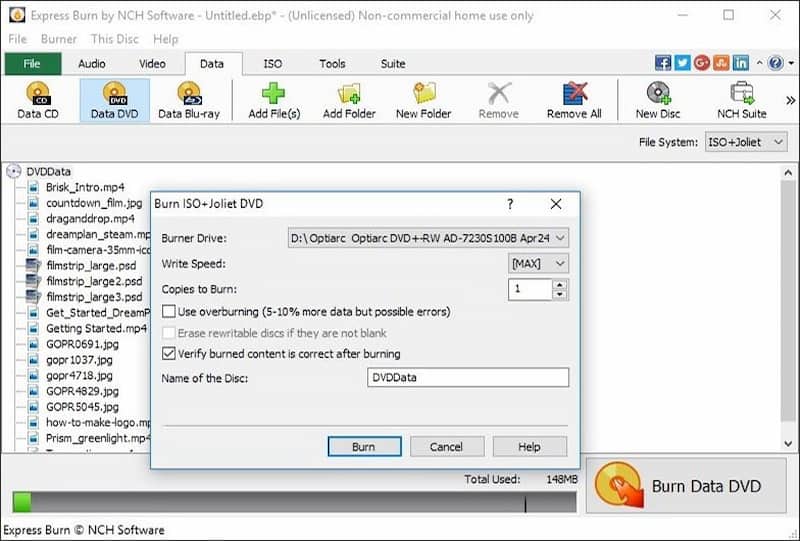
Free DVD burning software can meet the basic needs of some users. However, for users who want to do further editing, free software alone is not enough. In this case, you can subscribe to Express Burn to unlock the full version and burn files to DVD on Mac without limitations.
Pros
Cons
• Best for: Users who want a one-stop DVD burner for Mac with the basics.
• Operating System: Mac OS X 10.4.3 and up
• Price: Free
Disco was a free, lightweight DVD burner for Mac before, offering very basic one-stop DVD-burning features that let you create a DVD easily. Its intuitive manipulation workflow will guide you with clear instructions, letting even beginners burn MP4s to DVDs at ease.
Unfortunately, Disco was officially discontinued in 2011 and is no longer available.
Pros
Cons
Q1. Why do Blu-ray & DVDs have regions?
A: Region codes exist to restrict the playback of Blu-ray/DVD disks in different regions, preventing them from being recorded as pirated copies for commercial use and disrupting market order. Also, using region codes can maximize profits since studios can charge different prices for a movie according to the local economy.
Q2. How do I burn a DVD that is unplayable on a DVD Player?
A: Try VideoByte DVD Creator. This is probably because you burn a Data DVD, which is only used for file transfer, rather than a video DVD that supports playback on DVD players. So, you should burn it as a video DVD and then it can be played on any DVD player without limits. VideoByte can help you all the time. Besides, Finder and iTunes only support burning Data DVDs on Mac.
Q3. How can I burn YouTube videos to a DVD?
1. Download YouTube videos to your computer.
2. Use VideoByte DVD Creator to burn the video files to DVD.
Note: YouTube videos cannot be burned directly to DVD.
Q4. Can I burn QuickTime movies to DVD on a Mac?
A: Yes. QuickTime movies are mainly stored in MOV format, which is not supported by all DVD players natively. However, you can use DVD burning software for Mac, such as VideoByte DVD Creator, to directly burn QuickTime MOV movies to DVD, whether you’re saving drive space or backing up your favorite movies.
Most Mac DVD burners lack maintenance and may not meet your DVD-burning requirements, especially for users on the latest macOS systems. Also, they lack DVD menu editing features and only support burning videos to DVD.
By comparison, VideoByte DVD Creator is well compatible with Mac computers, including macOS Catalina and the latest M1, M2, and M3 models, helping more Mac users burn DVDs smoothly. Also, this Mac DVD burner is equipped with DVD burning, menu creation, and video editing functions, making it easier to create a unique DVD without extra assistance. Why not try it today?
Hot Articles
by in 16 March, 2026
by in 7 February, 2025
by in 17 December, 2025



 English
  Korean
  Dutch
Dutch  Chinese (traditional)
  Italian
  Spanish